
WhatsApp can feel wonderfully simple until your conversations start piling up. A family group becomes unusually active, an important address disappears beneath new messages, and your phone fills with videos you never intended to save. You still know how to send a message, but managing everything around that message takes more effort.
A few thoughtful changes can make the app easier to use. You can organize conversations, protect sensitive chats, improve the clarity of shared information, and reduce unnecessary downloads. Most of these habits take little time to learn and become useful almost immediately.
The best WhatsApp tricks are the ones that solve a problem you encounter regularly. You do not need to activate every feature or redesign your entire routine. Start with the settings and tools that help you communicate comfortably.
This guide follows Alex, a fictional person balancing work conversations, family messages, and plans for a weekend gathering. The scenario illustrates how fifteen useful tricks fit into an ordinary day.
Menu names and feature availability can differ between Android, iPhone, desktop, and web versions. Keep your official app updated and check the options shown on your device.
1. Organize WhatsApp Conversations With Filters And Lists

Alex opens WhatsApp in the morning and sees a mixture of personal messages, work discussions, and group conversations. Reading everything in order would mean spending time on casual updates before reaching messages that need attention.
Filters make that first review easier. Instead of looking through the entire inbox, select a view that matches your immediate task. An unread view helps you catch up on conversations, while a groups view narrows the screen to shared discussions.
Where custom lists are available, create a few categories that reflect your routine. Family, Work, and Weekend Plans may be enough.
Avoid creating categories simply because you can. A useful list should help you find something faster; otherwise, it becomes another thing to maintain.
Alex checks unread conversations first, answers two important messages, and leaves the social groups for later. The inbox has not become smaller, but it has become easier to approach.
Try this: Choose one filter and use it during your next message review.
Lesson: Organize your inbox around what you need to do, rather than treating every conversation as equally urgent.
2. Add Important People To Favorites
Some conversations deserve a convenient place because you return to them repeatedly. These might include a family member, a close friend, or someone you coordinate with throughout the working day.
Favorites can provide that shortcut without requiring you to search for the same person each time.
Alex adds a few frequently contacted people and one regularly used group. The selection stays small enough to be useful at a glance.
When choosing favorites, think about frequency and convenience. A person can be important to you without needing to appear in this particular list. Similarly, a temporary project contact may deserve a place for a few weeks.
Review the selection when your routine changes. An outdated favorites list can become as crowded as the main inbox.
Try this: Add three conversations you regularly struggle to find.
Lesson: A short, deliberate favorites list saves more effort than a long list containing nearly everyone you know.
3. Use Message Yourself As A Personal Capture Space
During breakfast, Alex remembers something needed for the weekend gathering. Sending the reminder to another person would create an unnecessary notification, but relying on memory feels risky.
A conversation with yourself provides a convenient place to capture that thought.
Open a new chat and look for your own contact entry. You can use the conversation for short notes, useful links, shopping reminders, or ideas you want to revisit.
Give notes enough context to make sense later. “Ask about this” may become meaningless by tomorrow. “Ask the venue whether outside food is allowed” is immediately understandable.
This approach works best as a temporary capture system. If the conversation becomes a mixture of unfinished tasks and unrelated files, important information can disappear beneath newer notes.
Alex collects several reminders during the day, then combines the shopping items into one list.
Try this: Send yourself a short note with a clear label.
Lesson: Capture information quickly, then organize anything that deserves a more permanent home.
4. Star Messages You Will Need Again
A colleague sends Alex the address for an afternoon meeting. Soon afterward, the conversation moves on to other subjects.
Scrolling back later might work, but starring the address makes retrieval much easier.
Select the message and choose the star option. When you need it again, open the area containing starred messages.
This is especially useful for directions, reference numbers, instructions, and other small pieces of information you expect to revisit. Choose carefully, however. If you star every interesting message, your saved collection becomes another crowded inbox.
A good test is to ask whether you can imagine a specific reason to return to the message. If the answer is yes, starring it probably makes sense.
Alex saves the address and one access instruction. The surrounding conversation stays unstarred.
Try this: Bookmark one genuinely useful message and practice finding it again.
Lesson: Save information with a purpose. Selective bookmarking makes future searching quicker and less frustrating.
5. Pin Shared Information Inside A Chat
The weekend group keeps asking when everyone should arrive. The answer has already been posted, but several newer conversations have pushed it out of view.
A pinned message can keep the agreed details easier to find within the chat.
Prepare the information before pinning it. A message containing the time, location, and any essential instructions is more useful than a vague note saying “See you there.”
In a group, the available pinning controls may depend on its settings. Follow the options displayed in your app and choose an appropriate duration where offered.
Pinned information needs maintenance. If the meeting time changes, update the shared reference so members do not follow an outdated plan.
Alex waits until the arrangements are settled, then pins one clear message.
Try this: Identify a repeatedly asked question in a group and create a concise shared answer.
Lesson: Pin information that helps everyone. Use personal bookmarks for details that only you need to retrieve.
6. Edit A Sent Message Before The Window Closes
Alex posts the wrong arrival time and notices the mistake immediately.
Editing allows you to correct supported text messages within the available fifteen-minute window. Select the message, choose Edit, change the wording, and confirm.
Before saving, check the whole message. Correcting one number while leaving another mistake can create additional confusion.
For a minor spelling error, an edit may be sufficient. For a changed appointment, amount, or important instruction, add a short follow-up explaining the correction. Someone may already have read or acted on the earlier version.
Alex fixes the arrival time and tells the group that the time has been corrected. That extra sentence prevents people from relying on what they first saw.
If the editing window has closed, send a clear replacement message.
Try this: Review important messages immediately after sending them.
Lesson: Editing helps maintain accuracy, while a direct follow-up makes significant corrections easier for recipients to notice.
7. Format Instructions So People Can Scan Them
Alex needs to share a shopping list, but a single paragraph makes the items difficult to separate.
Simple formatting improves readability. Bullets work well for items that can be handled in any order. Numbered lists are better for instructions that follow a sequence.
For example:
- Weekend shopping
- Bread
- Fruit
- Drinking water
Keep each line focused on one item. If someone needs to bring a specific quantity, include it beside the item rather than explaining it elsewhere.
Use emphasis sparingly. When every line is bold, readers have no visual cue showing what matters most.
Alex separates the shopping list from the gathering details and keeps both messages brief. Members can now check what they need without reading a long explanation.
Try this: Turn your next multi-item message into a short list.
Lesson: Good formatting makes information easier to act on. The aim is clarity, especially for someone reading quickly on a small screen.
8. Lock Sensitive Conversations
Before leaving home, Alex lends the phone to someone who needs it briefly. One conversation contains private family information.
Chat Lock can add an access barrier around selected conversations.
Find the option through the chat information or available conversation controls, then follow the authentication instructions. After enabling it, check how you access the locked conversation and how notifications appear.
Choose chats according to your needs. A private discussion, confidential plan, or sensitive document exchange may deserve extra protection.
Test the behavior on the devices you actually use. Do not assume that a setting enabled on one screen behaves identically across every linked interface.
Alex checks the locked chat before handing over the phone and keeps ordinary conversations accessible.
Try this: Enable the feature on a suitable conversation and test opening it again.
Lesson: An additional access barrier can improve privacy on your device. It does not control how the recipient handles their own copy of the conversation.
9. Add A Secret Code To Locked Chats
Alex also wants the locked-chat area to be less noticeable during casual browsing.
Where available, a secret code provides an additional way to access locked conversations. The option to hide the locked-chat folder can make the main chat list feel more discreet.
Open the locked-chat settings and follow the setup instructions. Choose a code that you can remember without making it obvious to someone else.
Before hiding anything, read the reset or recovery information displayed by the app. A privacy feature becomes inconvenient if you cannot remember how to access your own messages.
Test the complete process: leave the folder, enter the code through the appropriate interface, and confirm that the conversations appear.
Alex completes that test before considering the setup finished.
Try this: Practice accessing the folder after changing the setting.
Lesson: Privacy controls should work reliably for you. Make sure you understand both everyday access and recovery before depending on them.
10. Review Last Seen And Online Visibility
During work, Alex wants to check messages without making every contact feel that an immediate reply is available.
Last-seen and online controls let you review who can see these activity indicators.
Open Privacy settings and look for the relevant options. Consider both settings together so the overall behavior matches your preference.
These controls can help create a more comfortable boundary, but they cannot explain your schedule. If response times matter in a work or family relationship, communicate them directly.
Being online does not necessarily mean someone is available for a long conversation. They may be checking one message, sharing a file, or dealing with something urgent.
Alex adjusts the settings and separately tells colleagues when replies are usually possible.
Try this: Review the audience selected for your activity information.
Lesson: Use visibility controls to manage what the app displays. Use clear communication to manage expectations about your availability.
11. Silence Calls From Unknown Numbers
An unfamiliar number calls while Alex is concentrating. Another interruption follows shortly afterward.
Silencing unknown callers can reduce this distraction while allowing you to review the calls later.
Look under Privacy settings for the Calls section and enable the option if it suits your routine.
Think about the tradeoff before leaving it on permanently. New clients, delivery contacts, or other legitimate people may sometimes call from unfamiliar numbers.
For someone who rarely receives useful unknown calls, the setting may be convenient. For someone who relies on first-time callers, regularly checking the call list becomes more important.
Alex keeps the setting enabled during a focused afternoon and reviews missed calls afterward.
You can also change the setting when circumstances change rather than treating it as a permanent decision.
Try this: Decide whether unknown calls are usually helpful or disruptive in your daily life.
Lesson: A quieter phone is useful when you also have a sensible way to notice legitimate calls you may have missed.
12. Use Disappearing Messages For Temporary Discussions
Some conversations are valuable for a short period and unnecessary afterward.
A weekend planning discussion is a good example. Once the gathering is over, many of its casual messages no longer need to remain in the chat indefinitely.
Disappearing messages offer timers for suitable conversations. Review the available durations and select one that gives participants enough time to read what they need.
Before enabling a timer, consider whether the chat contains lasting information. An important agreement, payment record, or reference document may need to be preserved appropriately.
Other participants should understand the arrangement, especially when they expect to return to earlier messages.
Alex keeps the final arrangements available separately and uses a timer for temporary follow-up discussion.
Remember that disappearing content can still be copied or retained in other ways.
Try this: Identify a conversation where reducing retained history would be useful.
Lesson: Message timers help manage conversation history. They do not guarantee that shared information disappears from every possible location.
13. Send Clearer Photos With HD Quality
At the afternoon meeting, Alex photographs a handwritten plan. The recipient needs to read the details.
When available, the HD option can improve the quality of supported photo or video sharing. Select the image, review the quality control, and choose the appropriate option before sending.
Check the original photo first. Poor focus, dark lighting, and very small handwriting can remain difficult to read even when a higher-quality upload setting is used.
Take the picture steadily, inspect it, and crop unnecessary surroundings if that helps the important information stand out.
Higher-quality sharing can require more data and storage. Consider that when sending large collections, particularly to someone using a limited connection.
Alex sends one clear image instead of several similar photographs.
Try this: Ask the recipient whether the important detail is readable.
Lesson: Sharing quality starts with a usable source image. Choose the upload option according to what the recipient actually needs to see.
14. Control Downloads And Review Storage
Later, Alex notices that group videos are consuming a large amount of phone storage.
Automatic-download preferences can reduce the number of files arriving without a deliberate choice. Review the settings for mobile data, Wi-Fi, and roaming according to your connection and habits.
Then inspect the storage-management area to see which conversations or files occupy the most space.
Avoid deleting everything in a rush. A folder full of casual videos may also contain a useful document or an important personal photograph.
Save anything that needs a separate, reliable home before removing it from the app.
Alex limits unnecessary downloads and reviews large files individually. This reduces future cleanup instead of only solving today’s shortage.
Try this: Change one download preference and inspect your largest stored items.
Lesson: Prevention and cleanup work together. Sensible download settings reduce clutter, while careful storage review helps you remove files without losing something important.
15. Link Your Computer And Coordinate Plans With Polls Or Events
Alex finishes the day on a laptop, where longer messages are easier to type.
Linking a supported computer can make communication more convenient. Use the official web or desktop interface and complete the process through Linked Devices on your primary phone.
Afterward, review the device list and make sure you recognize every entry.
For the weekend group, structured planning tools also help. A poll is useful while a decision remains open. An event can bring confirmed arrangements together in a more organized form.
Keep polls focused. Ask one clear question and provide options that members can distinguish easily. Once a decision is made, check the event details before sharing them.
Alex uses the computer to finalize the discussion, then posts the agreed arrangements.
Try this: Review linked devices and use a structured planning message when a group decision becomes confusing.
Lesson: Match the tool to the task: a larger screen for comfortable typing, a poll for choosing, and an event for confirmed plans.
Your WhatsApp Action Plan
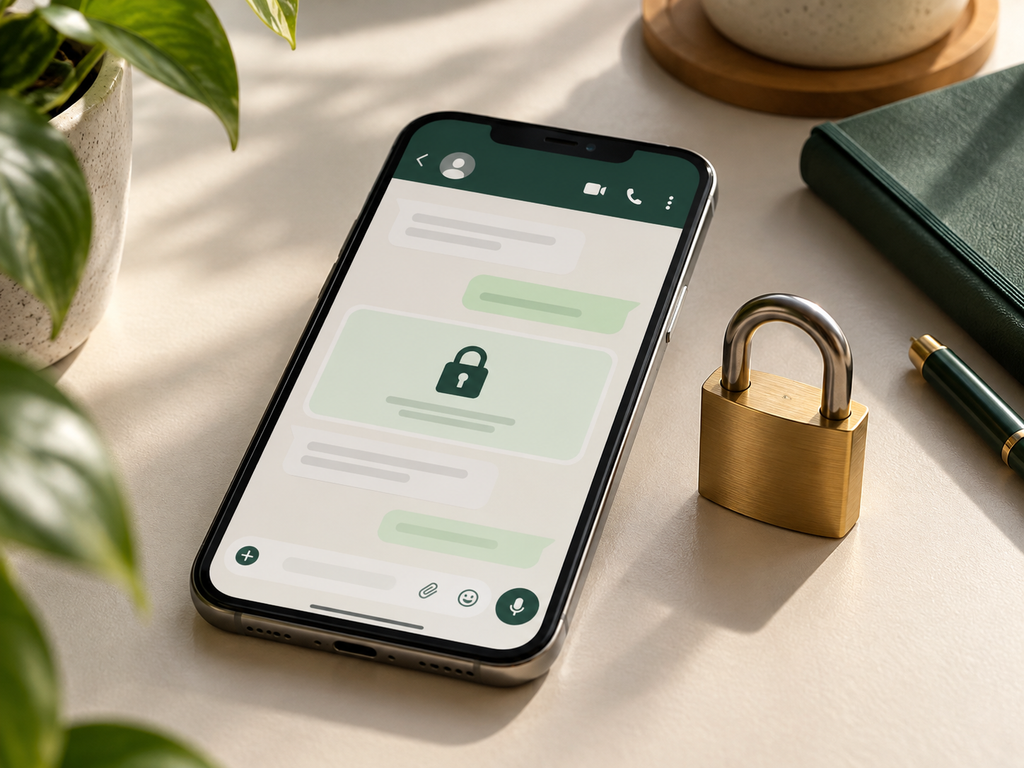
You do not need to change fifteen things today. Choose the problem that repeatedly wastes your time.
If you lose information, start with stars and pinned messages. If interruptions affect your concentration, review call controls. If media fills your phone, adjust downloads before performing another cleanup.
A short review can be enough:
- Organize frequently used conversations.
- Bookmark one important message.
- Check your privacy preferences.
- Review automatic downloads.
- Inspect linked devices.
Key Takeaways
Useful features should make communication simpler. Keep organization selective, shared information current, and privacy settings understandable. Test changes on your own devices and adjust them when your routine changes.
Frequently Asked Questions
-
Are These WhatsApp Tricks Suitable For Beginners?
Yes. Start with Message Yourself, Favorites, or starred messages. Learn one feature at a time and check how it behaves before moving on.
-
Why Does My Menu Look Different?
Different devices and app versions can present options differently. Look for the feature name rather than expecting every menu to match exactly.
-
Are All These Features New In 2026?
No. This guide covers useful features to use in 2026, including tools that have been available for several years.
-
Does Archiving Provide The Same Protection As Locking A Chat?
Archiving helps organize conversations. Chat Lock provides an additional access barrier. Choose according to whether your goal is a tidier inbox or greater privacy.
-
Should I Enable Every Setting Mentioned Here?
No. Select the features that fit your needs. A smaller set of well-understood tools is easier to maintain than many settings you rarely use.

1 Comments