
The message you need is somewhere in your chat history. You remember reading it, but searching a common word brings up dozens of results. Meanwhile, a long voice note is waiting, a group is asking for the same details again, and another collection of videos has downloaded to your phone.
These small frustrations can make a familiar app feel unnecessarily demanding.
WhatsApp includes tools that help with searching, organizing, recording, sharing, and protecting conversations. Some sit inside menus you rarely open. Others appear only when you select a message or begin a particular action.
You do not need technical knowledge to benefit from them. The useful part is understanding when a feature solves a real problem—and when a simpler approach would work just as well.
This article follows Maya, a fictional person balancing work messages, family conversations, and plans for a weekend gathering. Her day shows how twelve practical features can fit into an ordinary routine.
The word “hidden” refers to features that are easy to overlook. It does not mean they require unofficial software or secret access. Menu names and availability can differ across phones, computers, and app versions, so follow the controls displayed on your device.
1. Search A Conversation By Date Instead Of Scrolling
Maya needs an appointment message from several weeks ago. She remembers receiving it around a particular weekend, but the exact wording has slipped her mind.
A keyword search is not always helpful in this situation. Searching for “meeting” might produce dozens of unrelated messages, while scrolling through the conversation can take several minutes.
Where available, the date-search control offers a more direct route.
How to use it: Open the individual conversation or group, select Search, and look for the calendar or date option. Choose the day you remember, then examine the messages around it.
Treat the date as a starting point. If nothing appears immediately, check the surrounding days. People often remember the occasion more accurately than the precise date.
Maya finds the message by checking the Friday before the weekend she remembered.
For future convenience, give important messages descriptive wording. “Appointment address for Monday” will be easier to retrieve than “Here you go.”
Try this: Find an older conversation using an approximate date.
Lesson: Search with the clue you actually remember. A date can be more useful than trying to guess the original sentence.
2. Preview A Voice Message Before Sending It
Maya wants to explain a change of plans quickly. Recording feels easier than typing, but halfway through the message she mentions the wrong location.
Without a preview, she might send the mistake and follow it with another recording. The recipient would then have to work out which instruction is correct.
Voice-message preview gives her an opportunity to check the draft first.
How to use it: Begin recording and use the hands-free recording control where available. Pause the recording, then listen through the draft using the controls shown before choosing whether to send or discard it.
Focus on the information that matters. Are the names clear? Did you say the correct time? Is background noise covering part of the explanation?
You do not need to remove every pause or make the recording sound rehearsed. A natural message is fine when the meaning is clear.
Maya listens back, notices the location error, and records a shorter replacement.
Try this: Preview your next voice note containing an address, time, or instruction.
Lesson: A brief review can prevent an inaccurate message from creating a longer conversation about correcting it.
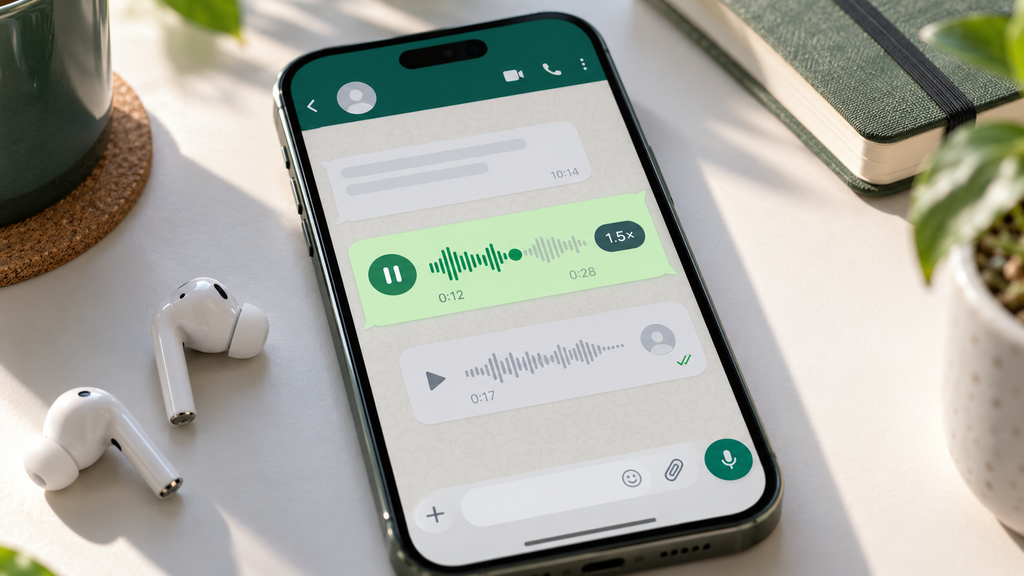
3. Adjust Voice-Message Playback Speed
A relative sends Maya a lengthy recording about the weekend. There are useful suggestions inside it, but the speaker takes time to reach each point.
Playback-speed controls can make a familiar, clearly spoken message easier to review efficiently.
How to use it: Start the voice message and select the speed indicator. Cycle through the available options until you find a comfortable pace.
Faster is not automatically better. A message containing unfamiliar names, complicated instructions, or speech in a language you are learning may need normal playback.
Use your understanding as the measure. If you keep replaying sections because the words move too quickly, the higher speed is costing time rather than saving it.
Maya listens faster through the general discussion, then slows down when the speaker describes where to meet.
For important numbers or addresses, write down the details and check them again if necessary.
Try this: Compare normal and faster playback on a recording you can understand easily.
Lesson: Adjust speed to suit the message. The goal is comfortable understanding, rather than rushing through every recording.
4. Use Message Yourself As A Temporary Notebook
While checking something online, Maya finds an idea for the gathering. She wants to save it without interrupting the group’s current discussion.
A conversation with yourself provides a convenient capture space.
How to use it: Start a new chat, find your own contact entry, and send the note, link, or reminder.
Add enough context to make the item useful later. An unexplained link may mean little after a few days. A note saying “Possible venue—check whether bookings are needed” preserves the reason you saved it.
You can also collect draft messages before sending them to someone else. This gives you a place to organize wording without putting unfinished thoughts into the actual conversation.
However, a self-chat can become cluttered. Review it occasionally and move lasting information into a suitable folder, document, or task system.
Maya saves the venue idea, checks it later, and shares only the confirmed details with the group.
Try this: Save one useful item with a short explanation.
Lesson: Capture quickly, then organize deliberately. Temporary notes become more useful when you return to them.
5. Format Lists So Recipients Can Act On Them
Maya needs to explain what everyone should bring. Her first draft contains supplies, quantities, and arrival instructions in one long paragraph.
The message is complete, but it asks recipients to do too much work.
Simple formatting can separate the information into readable parts.
How to use it: Put each item on its own line. Use bullets for items that can be handled in any order, or numbers for instructions that must follow a sequence.
For example:
Items to bring

Drinking water
Reusable cups
A light jacket
Keep quantities beside the relevant item. If two people are sharing a task, state that clearly instead of leaving them to infer the arrangement.
Use emphasis sparingly. A bold heading can guide the reader, but making everything bold removes that advantage.
Maya sends the supplies as a list and keeps the directions in a separate message.
Try this: Rewrite your next multi-part message using short, separate lines.
Lesson: Clear structure helps people respond correctly. It is especially useful when someone reads your message quickly on a small screen.
6. Star Messages You Expect To Need Again
A colleague sends Maya a reference number. She will need it later, but she cannot deal with the task immediately.
Starring the message provides a convenient bookmark.
How to use it: Select the message and choose Star. When you need it again, open the starred-message area through the menu or settings available on your device.
This works well for individual pieces of information: a location, an instruction, a reference number, or a useful explanation.
Be selective. If every interesting message receives a star, the saved collection becomes another place where important details are difficult to find.
Ask yourself a practical question before bookmarking: “What will I need this for?” A clear answer usually means the message is worth saving.
Maya stars the reference number and retrieves it when completing the task that afternoon.
For records that must remain available reliably, maintain an appropriate separate copy rather than depending entirely on a bookmark.
Try this: Star one useful message, leave the conversation, and retrieve it again.
Lesson: Save information with a purpose. A small, maintained collection is easier to use than an overflowing one.
7. Pin Shared Information Inside A Conversation
Several people ask the weekend group what time they should arrive. Maya has already answered, but newer messages have pushed the arrangements out of view.
A pinned message can make the agreed information easier to locate.
How to use it: Select a suitable message, choose Pin, and follow the available controls. Group permissions and interface options may affect what you can do.
Prepare the message before pinning it. Include the actual time, place, and essential instructions rather than directing readers to “the details above.”
A pinned message should be understandable on its own.
It also needs maintenance. If the location changes, remove or replace the outdated reference so people do not follow an earlier plan.
Maya waits until the group has agreed on the arrangements, then pins one concise message containing everything members need.
Starring and pinning serve different purposes. A star helps you retrieve something personally; a pin helps keep information prominent within the conversation.
Try this: Pin a clear answer to a question that repeatedly appears in a group.
Lesson: Shared information becomes useful when it is complete, current, and easy to understand.
8. Lock Sensitive Chats And Review Secret-Code Options
Maya occasionally lends her phone to someone for a quick task. One conversation contains private information she would prefer to keep less accessible.
Chat Lock provides an additional access barrier around selected conversations.
How to use it: Open the conversation information or available chat controls, find Chat Lock, and follow the authentication instructions.
Where a secret-code option is available, review whether it suits your needs. You may also have an option to make the locked-chat folder less visible.
Choose a code you can remember and protect. Read the recovery or reset instructions before relying on the feature.
Then test it. Leave the conversation, return to the app, and confirm that access behaves as expected.
Check the devices you use individually. Do not assume a setting behaves identically across every phone or linked interface.
Maya completes the test before considering the setup finished.
Try this: Lock a suitable conversation and practice reopening it.
Lesson: Privacy settings work best when you understand both everyday access and recovery. They do not control what the other participant does with their own messages.
9. Silence Unknown Calls When They Interrupt Your Day
An unfamiliar number calls while Maya is concentrating. She does not recognize the caller, but she also knows that some legitimate people contact her from unsaved numbers.
Silencing unknown callers can reduce interruptions while allowing her to review the call record later.
How to use it: Open Privacy settings, look for the Calls section, and review the Silence Unknown Callers option.
Consider how you use the account. Someone who rarely receives useful unfamiliar calls may find this convenient. Someone handling new customer inquiries may need a different approach.
You can also adjust the setting when circumstances change. A focused work session and a day awaiting a delivery may have different requirements.
Maya enables the option during a busy afternoon and checks the Calls tab after finishing her task.
The setting reduces ringing; it does not decide whether a caller is trustworthy or whether you should respond.
Try this: Think about how often unfamiliar calls are helpful in your routine.
Lesson: Reduce distractions while keeping a reasonable way to notice legitimate attempts to contact you.
10. Choose A Default Media Upload Quality
Maya often shares photographs containing useful detail. Checking the quality choice every time adds another small task to the process.
A default upload-quality preference can make sharing more consistent.
How to use it: Open Storage and Data settings, find Media Upload Quality, and review the available choices.
Choose according to your usual needs. Detailed photographs may benefit from a higher-quality setting, while casual updates over a limited connection may call for a different default.
Inspect the original image first. A higher upload setting cannot repair poor focus, very small writing, or an image taken in insufficient light.
The recipient’s needs matter too. If a photograph is intended to explain an instruction, check that the relevant detail remains readable after sharing.
Maya chooses the quality preference that fits her usual photos and still reviews important attachments before sending them.
For tasks requiring a specific file format or delivery standard, agree on the method with the recipient.
Try this: Compare the received result using a photograph with fine detail.
Lesson: A sensible default saves effort, but checking the actual result remains worthwhile when image clarity matters.
11. Control Automatic Downloads Before Storage Becomes A Problem
Maya belongs to several active groups. Videos arrive regularly, and many have no lasting value to her.
Repeated cleanup becomes frustrating when the same download habits continue filling the phone.
Automatic-download controls help address the source of the clutter.
How to use it: Open Storage and Data, review Media Auto-Download, and adjust the available preferences for your connection types. Then inspect the storage-management area.
Think separately about mobile data, Wi-Fi, and roaming. The setting that works at home may be unsuitable while travelling or using a limited data allowance.
Before deleting existing files, review them. A conversation full of casual clips may also contain an important document or meaningful photograph.
Maya limits unnecessary downloads and saves valuable files elsewhere before removing unwanted media.
This approach combines prevention with careful cleanup.
Try this: Review one download category and one conversation using substantial storage.
Lesson: Reducing unwanted downloads saves future effort. Removing files thoughtfully helps you avoid losing something important during cleanup.
12. Review Two-Step Verification And Recovery Information
Maya uses WhatsApp for conversations she would not want someone else to control. She decides to review account protection while she has time to do it carefully.
Two-step verification adds another security requirement to the account.
How to use it: Open Account settings, find Two-Step Verification, and follow the current setup instructions displayed by the app.
Depending on the version available to you, the process may refer to a PIN or password. Use the options shown rather than relying on instructions written for a different interface.
Choose a credential you can protect and retrieve reliably. If recovery-email options are offered, confirm that the address belongs to you and remains accessible.
Understand the distinction between your chosen credential and a one-time registration code. Keep both private.
Maya checks her recovery details before finishing the setup, so she knows what to do if she forgets the credential.
Try this: Check whether protection is enabled and whether recovery details are current.
Lesson: Account protection is easier to establish before an urgent problem occurs. Recovery deserves the same attention as activation.
Your WhatsApp Action Plan
You do not need to change every setting today. Start with the problem that repeatedly consumes your attention.
If you lose information, practise searching and bookmarking. If voice notes cause confusion, preview outgoing recordings. If storage fills quickly, adjust downloads before performing another cleanup.
Make one change, test it, and decide whether it improves your routine.
- ☐ Find an older message using an approximate date.
- ☐ Preview an important voice note.
- ☐ Star a useful instruction.
- ☐ Review automatic downloads.
- ☐ Check account recovery details.
Key Takeaways
Useful features should make communication easier. Keep saved information selective, shared arrangements current, and privacy controls understandable. Review settings again when your devices, responsibilities, or communication habits change.
Frequently Asked Questions
-
Are These Features Really Hidden?
They are built-in tools that can be easy to overlook. “Hidden” describes their lower visibility during ordinary use, rather than secret access.
-
Do I Need Another App?
The features described belong to WhatsApp itself. Explore the official app’s controls before looking for an additional tool.
-
Why Is An Option Missing From My Device?
Availability and menu layouts can differ by device, operating system, and app version. Keep the official app updated and review its current options.
-
Which Feature Is Easiest For A Beginner?
Start with Message Yourself or starring a message. Both let you practise saving and retrieving information without changing several settings.
-
Do Privacy Settings Guarantee Complete Protection?
No single setting controls every possible way information can be accessed or retained. Device access, recipients, and copies of shared content still matter.
-
Should I Change Everything At Once?
Change settings gradually. Testing each adjustment makes its effect easier to understand and helps you maintain a setup that suits your daily needs.