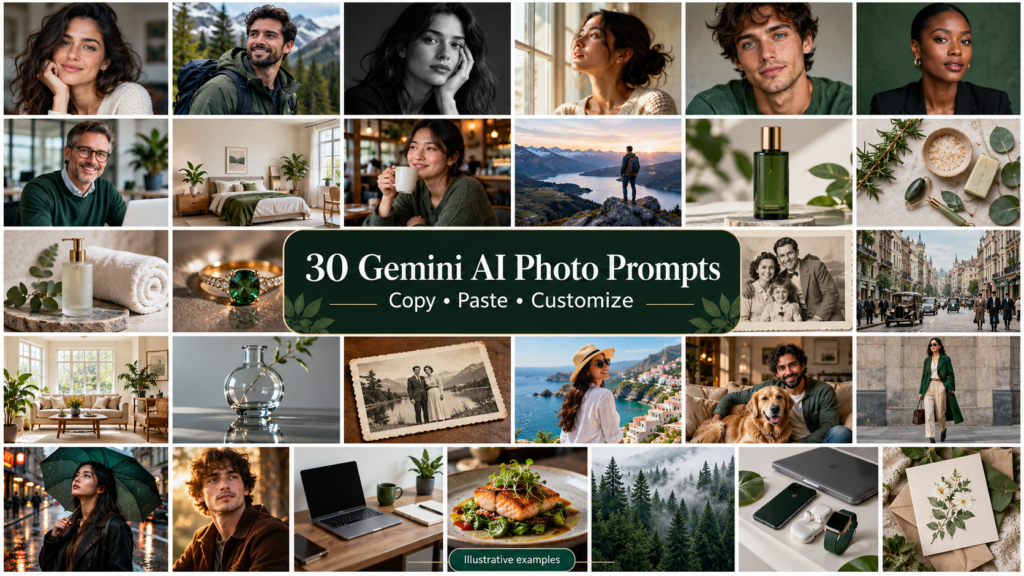
Gemini AI Photo Prompt Copy Paste: 30 Prompts With Examples
A good photo-editing prompt explains more than the look you want. It also tells the AI what should stay the same.
You might want a cleaner background while keeping your face recognizable. You may need a product photograph with better lighting but unchanged packaging. Or perhaps an old family picture needs careful repair rather than a completely new interpretation.
This gemini ai photo prompt copy paste collection gives you thirty original templates for those situations. Each prompt includes a clear editing goal and practical constraints you can customize.
These are starting templates, not guaranteed results or claims of completed Gemini testing. Generated edits can alter details unexpectedly, so inspect the output before using it for a profile, business listing, or important personal project.
How To Use These Gemini Photo Prompts
Choose a prompt that matches your goal. For editing, upload the relevant photograph and paste the prompt into the conversation.
Replace anything inside square brackets with your preference. For example, change [background color] to “warm light gray.”
A practical workflow is:
- Choose a clear reference photograph.
- Describe the specific change you want.
- State which details should remain unchanged.
- Review the generated result.
- Request one focused correction if necessary.
Some prompts below require a reference photograph. Others can generate a new scene. The available editing tools and results depend on the Gemini version and account features you have.
For photographs of people, use your own images or images you have permission to edit. For products, check that important identifying details remain accurate.
Gemini AI Photo Prompt Copy Paste: Portrait And Profile Ideas
1. Natural Professional Headshot
Use it for: A personal profile or professional introduction.
Reference photo: Required.
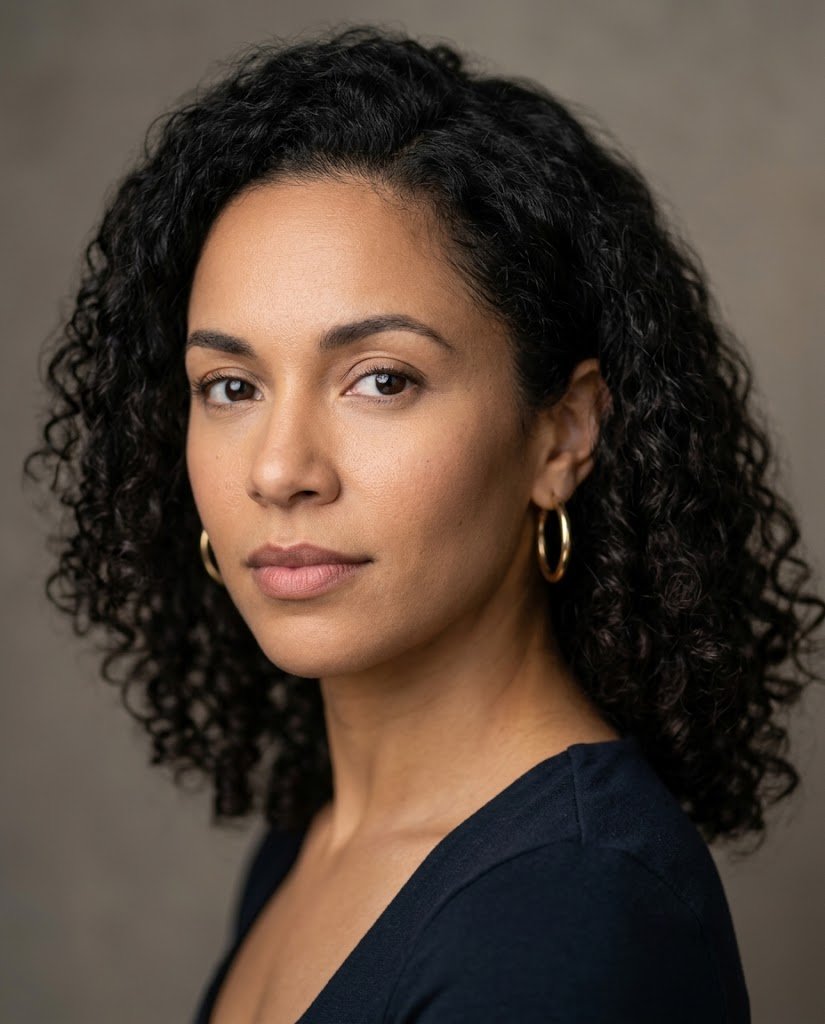
Edit the uploaded photograph into a natural professional headshot.

Preserve the person's recognizable facial features, skin tone, age appearance, hairstyle, and natural expression as closely as possible.

Use a simple warm-gray studio background and soft, even lighting. Frame the head and upper shoulders with comfortable space above the hair.

Keep realistic skin texture and natural facial proportions. Make only subtle exposure and color corrections.

Do not reshape the face, enlarge the eyes, change the smile, add excessive makeup, or create overly smooth skin.

Output a clean portrait in a 4:5 aspect ratio.
Example direction: Use a neutral background and an expression suitable for the platform where you plan to display it.
2. Casual Outdoor Profile Photo
Use it for: A relaxed social profile.
Reference photo: Required.
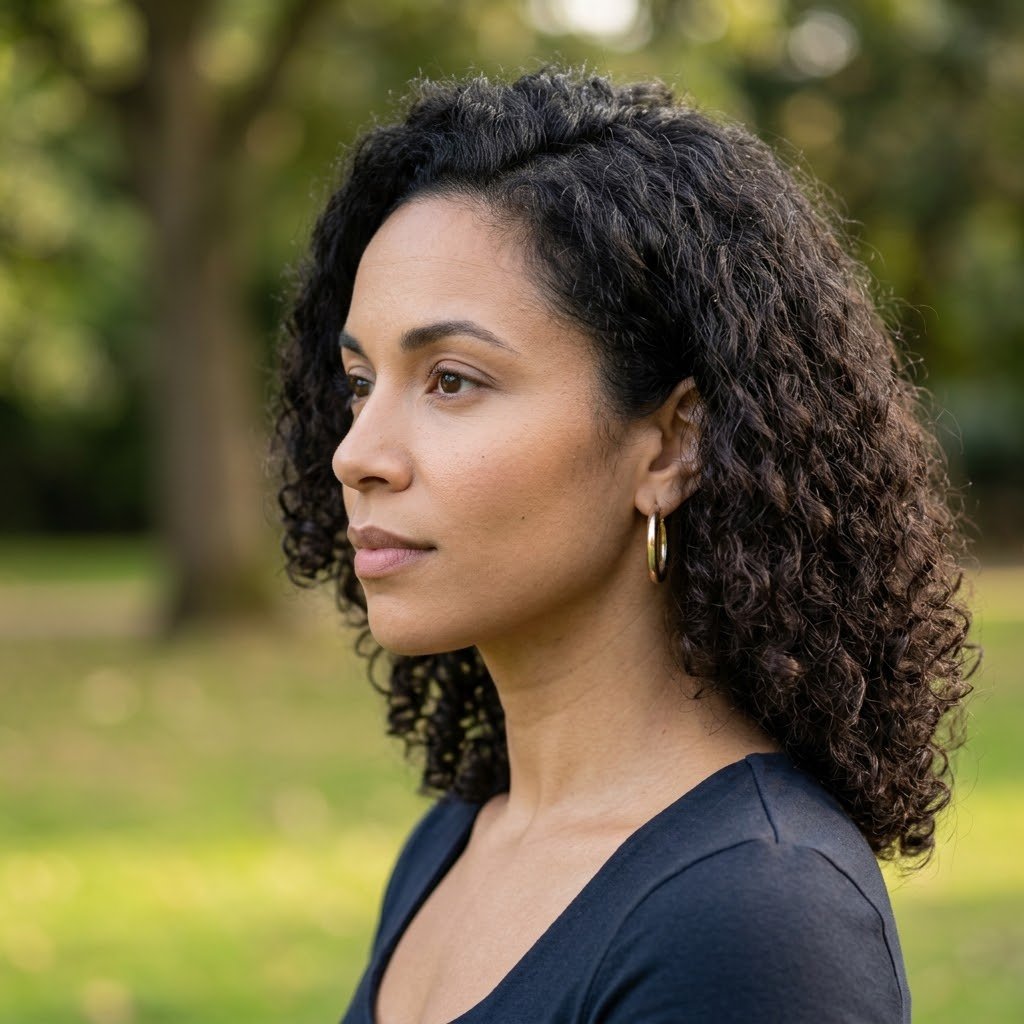
Edit the uploaded portrait into a believable outdoor profile photograph.

Keep the person's recognizable identity, hairstyle, clothing, and body proportions as closely as possible.

Replace the background with a quiet park containing softly blurred greenery. Use gentle late-afternoon daylight with realistic shadows matching the subject.

Keep the face sharp and the background softly out of focus. Preserve natural skin texture.

Avoid dramatic color grading, exaggerated sunlight, facial reshaping, or artificial-looking blur.

Use a 1:1 composition with enough space around the head for profile cropping.
Example direction: Ask for a courtyard or garden if that better suits your style.
3. Clean Black-And-White Portrait
Use it for: An understated portrait.
Reference photo: Required.
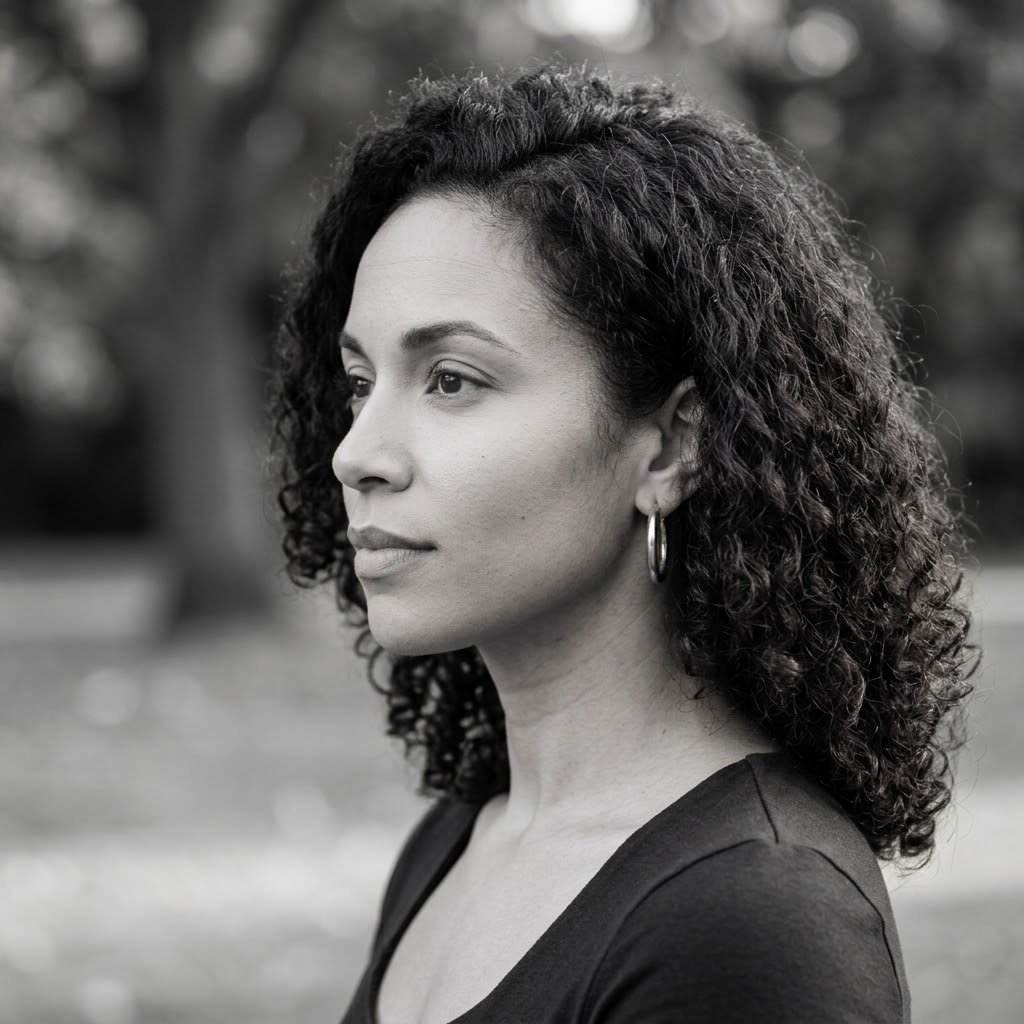
Convert the uploaded portrait into a refined black-and-white photograph.

Preserve the original face, expression, hairstyle, pose, and clothing.

Use balanced grayscale tones, gentle contrast, and clear detail in both highlights and shadows.

Keep natural skin texture and avoid making facial lines unusually harsh.

Retain the original composition unless a small crop improves balance.

Do not add objects, change the background structure, or alter facial proportions.
Example direction: Choose softer contrast for a friendly look and slightly stronger contrast for a more formal portrait.
4. Window-Light Portrait
Use it for: A warm, natural indoor photograph.
Reference photo: Required.
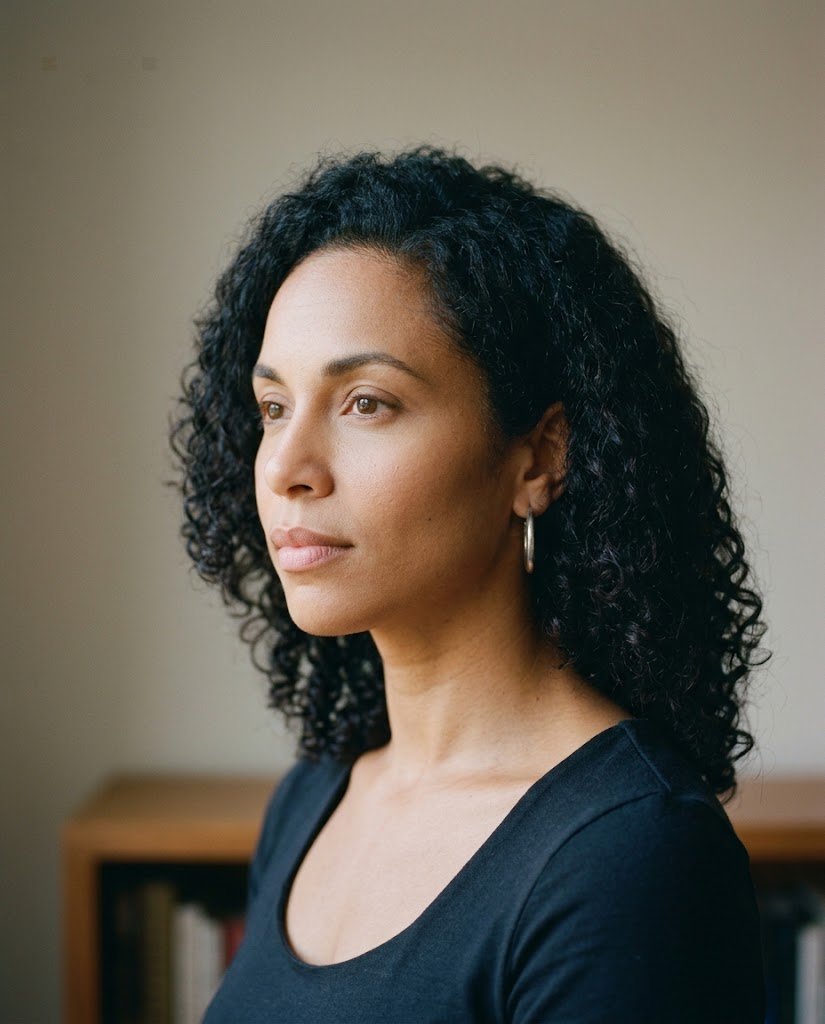
Edit the uploaded portrait to create the appearance of soft window lighting.

Keep the person's identity, expression, hairstyle, and outfit as closely as possible.

Use a simple indoor background with muted neutral colors. Add gentle light from one side, with soft shadows on the opposite side.

Maintain believable exposure and natural skin tones. Keep the result photographic rather than painterly.

Do not add a visible window unless it fits the composition naturally.

Use a 4:5 portrait aspect ratio.
Example direction: Specify light from the left or right when matching an existing setting.
5. Natural Portrait Color Correction
Use it for: A photograph with an unwanted color cast.
Reference photo: Required.
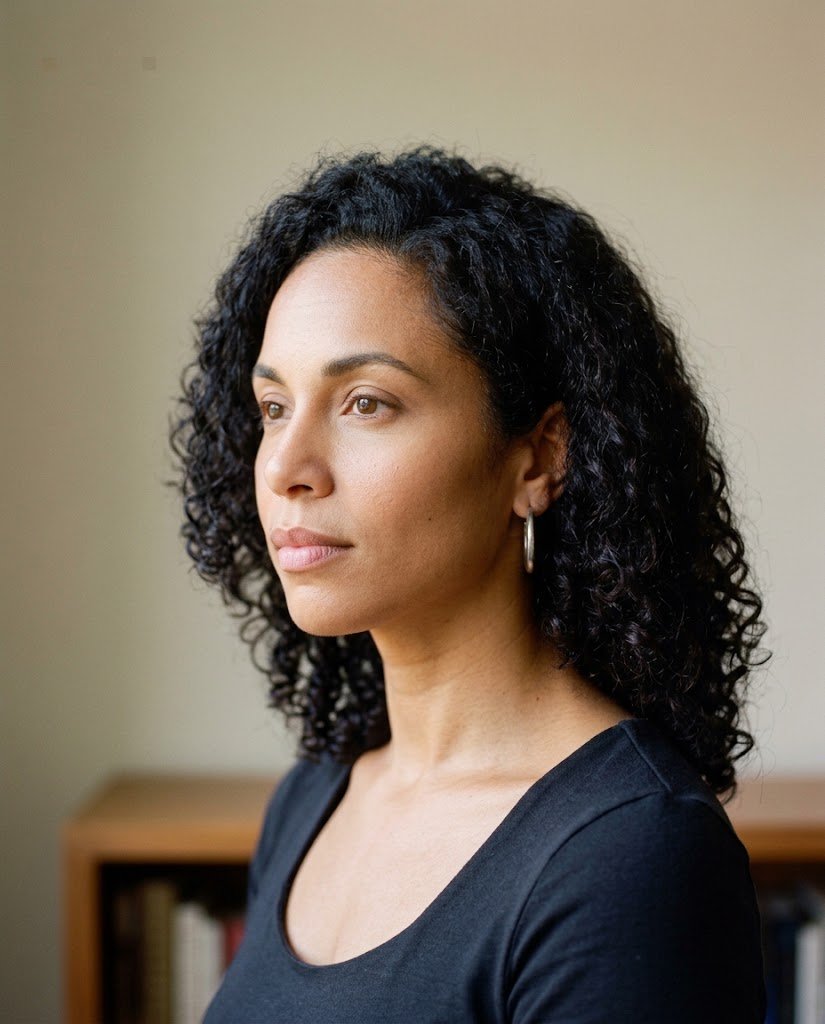
Correct the color and exposure of the uploaded portrait while preserving its original appearance.

Keep the face, expression, hairstyle, clothing, background, and framing unchanged.

Reduce the unwanted [yellow/blue/green] color cast. Restore balanced skin tones and believable white balance.

Recover visible detail where possible without inventing new facial features.

Avoid beauty filters, artificial sharpening, oversaturated colors, and excessive skin smoothing.
Example direction: Describe the actual problem rather than asking vaguely to “make it perfect.”
Background Editing Prompts
6. Simple Studio Background
Use it for: Removing distractions from a portrait.
Reference photo: Required.
Replace only the background of the uploaded image with a seamless [background color] studio backdrop.

Preserve the subject's face, hair, clothing, pose, and proportions as closely as possible.

Maintain fine hair edges and realistic separation between the subject and background.

Match the new background to the original lighting. Add only a subtle natural shadow if needed.

Do not retouch the face or change any accessories.
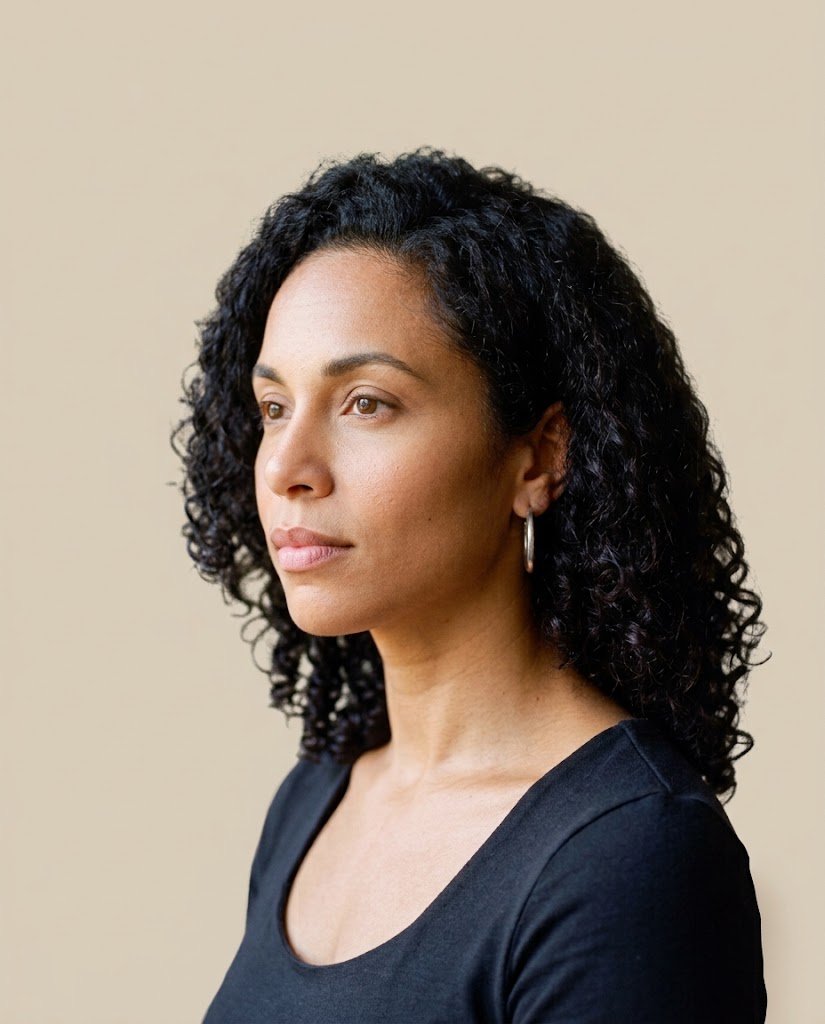
Example direction: Warm white, pale gray, and muted beige are useful starting colors.
7. Realistic Office Background
Use it for: A professional-looking personal image.
Reference photo: Required.
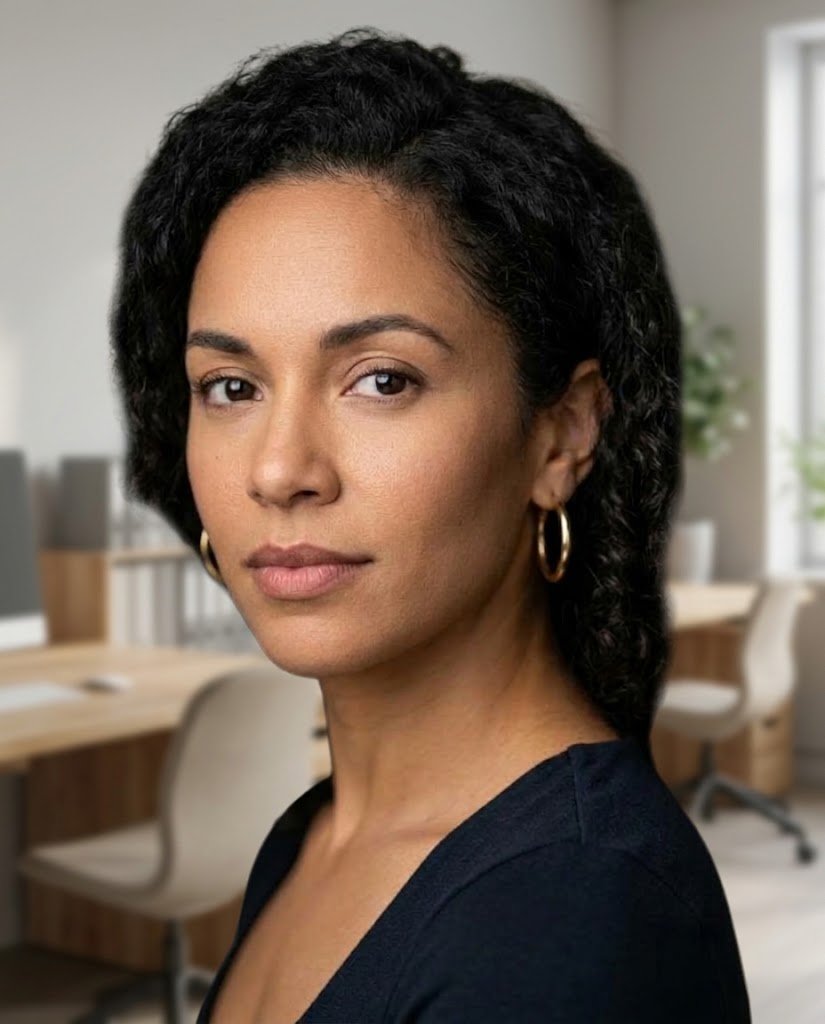
Replace the background of the uploaded portrait with a realistic modern office.

Use understated furniture, neutral colors, and soft daylight. Keep background details gently out of focus.

Preserve the person's recognizable identity, clothing, pose, and original camera angle.

Match the perspective, light direction, and shadow softness to the subject.

Do not add company logos, readable documents, other people, or implied professional credentials.
Example direction: A modest workspace often looks more convincing than an elaborate boardroom.
8. Remove Background Clutter
Use it for: Cleaning an existing scene.
Reference photo: Required.
Replace the background with a quiet, believable café setting.

Use warm neutral décor, soft daylight, and a gently blurred background.

Keep the person's recognizable face, hairstyle, outfit, and pose as closely as possible.

Match the scene perspective and lighting to the reference photograph.

Avoid readable brand names, other prominent people, excessive bokeh, or cinematic effects.
Example direction: Keep the setting simple so the person remains the focus.
10. Extend A Background For A Wider Crop
Use it for: Creating more space around a photograph.
Reference photo: Required.
Extend the existing background of the uploaded image to create a 16:9 composition.

Keep the original subject unchanged in scale, appearance, pose, and position unless a minor repositioning is necessary for balance.

Continue the existing environment naturally, maintaining perspective, lighting, textures, and depth.

Do not duplicate objects, invent additional people, or crop important parts of the subject.

The added areas should blend smoothly with the original image.
Example direction: Request extra space on a specific side if you plan to add text later.
Product Photography Prompts
11. White-Background Product Image
Use it for: A clean product presentation.
Reference photo: Required.
Edit the uploaded product photograph into a clean product image on a plain white background.

Preserve the exact visible product shape, color, material, packaging, and identifying details as closely as possible.

Use soft, balanced lighting and a subtle realistic grounding shadow.

Keep the entire product visible with comfortable margins.

Do not invent features, alter label wording, remove functional parts, or change the product's proportions.
Example direction: Check small labels carefully before using the result commercially.
12. Neutral Product Flat-Lay
Use it for: A simple promotional composition.
Reference photo: Required.
Place the uploaded product in a realistic flat-lay composition on a [surface description].

Preserve its design, dimensions, colors, and visible branding as closely as possible.

Use soft overhead daylight and believable contact shadows.

Include only these supporting objects: [list objects, or write none].

Keep the composition uncluttered and avoid props that imply unsupported product features.
Example direction: A pale wood or neutral paper surface can keep attention on the product.
13. Skincare Product Scene
Use it for: A restrained lifestyle product image.
Reference photo: Required.
Create a clean editorial scene featuring the uploaded skincare product.

Keep the container shape, cap, colors, and visible label details as closely as possible.

Place it on a neutral bathroom shelf with soft natural light and a simple folded towel nearby.

Maintain realistic scale and shadows.

Do not add medical claims, before-and-after results, certification symbols, or ingredients that are not supplied.
Example direction: Use props that support the setting without implying a formulation.
14. Jewelry Detail Photograph
Use it for: Presenting craftsmanship.
Reference photo: Required.
Edit the uploaded jewelry photograph into a refined close-up product image.

Preserve the visible setting, stone arrangement, metal color, and overall design as closely as possible.

Use controlled soft lighting that reveals texture without exaggerated sparkle.

Place the item on a simple neutral surface.

Do not increase stone size, add gemstones, alter the clasp, or imply a different material.

Keep enough depth of field for the important design details to remain clear.
Example direction: Inspect stone settings and fasteners before publishing.
15. Handmade Product Presentation
Use it for: Crafts and small-business images.
Reference photo: Required.
Create a natural product presentation using the uploaded handmade item.

Preserve its shape, texture, color variations, and visible handmade characteristics.

Place it on a simple [surface] with gentle side lighting.

Keep small natural imperfections that belong to the item.

Do not make the product look factory-perfect, change its construction, or add accessories that are not included.
Example direction: Authentic texture may communicate the item better than heavy polishing.
Photo Restoration And Cleanup Prompts
16. Repair Minor Scratches
Use it for: A scanned photograph with surface damage.
Reference photo: Required.
Carefully restore the uploaded scanned photograph.

Reduce visible scratches, dust marks, and small surface defects while preserving the original people, objects, composition, and period appearance.

Keep faces recognizable and avoid inventing detailed features where the source is unclear.

Maintain a natural photographic texture.

Do not modernize clothing, replace backgrounds, or apply beauty retouching.

If an area is too damaged to restore reliably, keep the reconstruction restrained.
Example direction: Keep the original scan separately from any restored version.
17. Gentle Old-Photo Colorization
Use it for: An interpretive color version of a monochrome photograph.
Reference photo: Required.
Create a restrained colorized interpretation of the uploaded black-and-white photograph.

Preserve faces, expressions, clothing shapes, objects, and composition.

Use plausible, muted colors appropriate to the visible scene.

For details whose original colors are unknown, avoid strong or unusual guesses.

Keep the result natural and retain some original photographic texture.

Do not present the chosen colors as historically verified.
Example direction: Supply known clothing or object colors when you have reliable information.
18. Improve A Dim Indoor Photograph
Use it for: A photo that is slightly too dark.
Reference photo: Required.
Improve the visibility of the uploaded dim indoor photograph.

Lift exposure moderately, balance white tones, and reduce distracting noise while preserving the original lighting mood.

Keep people, faces, clothing, objects, and composition unchanged.

Avoid extreme brightening, invented detail, halos, and excessive smoothing.

The result should still look like the same photograph taken in the same setting.
Example direction: A moderately improved image can look more believable than a dramatically brightened one.
19. Reduce Glare On A Non-Essential Surface
Use it for: Distracting reflections.
Reference photo: Required.
Reduce the distracting glare on [identify surface] in the uploaded image.

Preserve the surrounding object, scene, perspective, and lighting.

Recover visible underlying detail only where the source provides enough information.

Do not fabricate unreadable text or reconstruct important document content.

Keep a small amount of reflection if necessary to preserve the material's realistic appearance.
Example direction: Avoid relying on AI reconstruction for documents or critical text.
20. Clean A Scanned Photo’s Borders
Use it for: Untidy scan edges.
Reference photo: Required.
Clean the borders of the uploaded scanned photograph.

Remove scanner-bed edges, uneven blank margins, and small border marks.

Straighten the image gently if needed while preserving the complete original scene.

Keep people and objects unchanged.

Do not crop meaningful content or alter the original photograph's proportions unnecessarily.
Example direction: Specify whether you want the original printed border preserved.
Lifestyle And Creative Photo Prompts
21. Travel Portrait With A New Setting
Use it for: A clearly creative travel-style edit.
Reference photo: Required.
Create a creative travel-style edit of the uploaded portrait in [location or setting].

Preserve the person's recognizable facial features, hairstyle, and proportions as closely as possible.

Match the subject's lighting and perspective to the new environment.

Use believable surroundings and natural photographic detail.

Avoid distorted architecture, exaggerated scenery, or added crowds.

The image is a creative edit, not evidence that the person visited this location.
Example direction: Describe the environment precisely, such as “a quiet coastal promenade.”
22. Cozy Indoor Lifestyle Portrait
Use it for: A warm personal image.
Reference photo: Required.
Create a natural lifestyle edit of the uploaded person in a comfortable living room.

Preserve recognizable identity and natural body proportions.

Use understated furnishings, warm neutral colors, and gentle daylight.

Keep the pose relaxed and anatomically believable.

Avoid excessive decoration, dramatic lighting, glossy skin, or an advertisement-like expression.

Use a 4:5 composition.
Example direction: Specify whether the existing pose and outfit should remain unchanged.
23. Editorial Outfit Background
Use it for: Showing an existing outfit in a cleaner setting.
Reference photo: Required.
Edit the uploaded full-body photograph into a clean editorial outfit image.

Preserve the person's face, body proportions, pose, and all visible clothing details.

Replace only the background with a simple neutral architectural setting.

Use soft natural lighting and realistic ground contact.

Do not alter garment length, fabric pattern, footwear, accessories, or body shape.
Example direction: Review hands, garment edges, and shoes closely.
24. Rainy-Day Atmosphere
Use it for: A creative weather treatment.
Reference photo: Required.
Add a subtle rainy-day atmosphere to the uploaded outdoor photograph.

Preserve the subject's identity, pose, clothing design, and composition.

Use an overcast sky, gentle environmental reflections, and restrained rain consistent with the scene.

Keep lighting and surface wetness believable.

Do not add dramatic storms, change the location, or place heavy rain effects over the face.
Example direction: Ask for an atmospheric edit rather than evidence of actual weather.
25. Soft Film-Inspired Color Treatment
Use it for: A restrained visual style.
Reference photo: Required.
Apply a subtle film-inspired color treatment to the uploaded photograph.

Preserve all people, objects, facial details, and composition.

Use gentle contrast, slightly softened highlights, and restrained fine grain.

Keep skin tones believable and avoid strong orange-and-teal grading.

Do not introduce blur, light leaks, scratches, or artificial lens effects.
Example direction: Specify a warm or cool treatment without changing the scene itself.
New Image Generation Prompts
26. Minimal Workspace Photograph
Use it for: An original article illustration.
Reference photo: Not required.
Generate an original realistic editorial photograph of a tidy home workspace.

Include a laptop, a plain notebook, a pen, and a small plant on a light wooden desk.

Use soft daylight from a nearby window, believable materials, and natural shadows.

Keep screens and documents free of readable private information.

Use an uncluttered 16:9 composition with open space for a headline.

No watermark or brand logos.
Example direction: Choose the empty side according to your planned text placement.
27. Simple Food Photograph
Use it for: A creative recipe or lifestyle image.
Reference photo: Optional.
Generate a realistic editorial food photograph of [dish].

Show the dish with believable ingredients, natural portions, and appetizing but restrained presentation.

Use a simple table setting and soft side daylight.

Include only [specified utensils or props].

Avoid impossible food shapes, excessive steam, plastic-looking textures, and crowded decoration.

Use a 4:3 composition.
Example direction: List essential ingredients if the dish must resemble a particular recipe.
28. Nature-Themed Phone Wallpaper
Use it for: A personal background.
Reference photo: Not required.
Generate an original calm nature wallpaper showing [landscape].

Use natural colors, realistic environmental detail, and a peaceful composition.

Keep the upper portion visually simple so phone interface elements remain readable.

Avoid text, logos, people, and overly dramatic effects.

Use a vertical 9:16 aspect ratio.
Example direction: A misty woodland or quiet shoreline can provide a low-clutter background.
29. Clean Technology Article Image
Use it for: An illustrative blog image.
Reference photo: Not required.
Generate an original editorial photograph illustrating [technology topic].

Use a realistic device arrangement in a clean everyday setting.

Any screen interfaces should be clearly conceptual and contain no real personal data.

Use balanced lighting, restrained colors, and believable materials.

Leave space for a headline and avoid misleading performance or security claims.

Use a 16:9 composition with no watermark.
Example direction: Identify the article’s actual subject rather than adding unrelated futuristic objects.
30. Personalized Greeting Image
Use it for: A simple creative greeting.
Reference photo: Optional.
Create an original greeting image for [occasion].

Use [color palette] and a clean composition with [specified decorative elements].

Include only this exact text:
"[greeting text]"

Make the wording large, readable, and comfortably inside the image edges.

Avoid extra lettering, crowded decoration, brand logos, and watermarks.

Use [aspect ratio].
Example direction: Keep the greeting short and check every letter in the result.
How To Customize A Prompt Without Making It Confusing
A template becomes more useful when you adapt it to one clear goal.
Change the details that matter: background, lighting, framing, or specific objects. Keep the preservation instructions when editing an existing person or product.
Avoid combining several contradictory requests. “Keep the photo unchanged” conflicts with replacing the pose, clothing, lighting, and environment at the same time.
A useful structure is:
Subject → Requested change → Details to preserve → Lighting and composition → Things to avoid
For example, replacing a background requires different instructions from generating an entirely new portrait. State which task you want before describing the style.
What To Do When Gemini Changes Something You Wanted To Keep
Review the output against the reference image. Check faces, hands, clothing, object shapes, labels, and background edges.
If one issue stands out, use a focused correction:
Revise the previous result by changing only [specific issue].

Use the uploaded reference to restore [detail].

Keep the remaining composition, lighting, colors, and objects as close to the previous result as possible.

Do not introduce additional changes.
For identity-sensitive or detail-sensitive work, consider restarting from the original photograph rather than repeatedly editing an already altered result.
A prompt can request preservation, but it cannot guarantee an exact match.
Your Prompt-Editing Checklist
Before generating:
- Choose an appropriate reference image.
- Replace all bracketed placeholders.
- State the main editing goal clearly.
- Identify details that must remain recognizable.
- Avoid conflicting instructions.
Before using the result:
- Inspect facial features and anatomy.
- Check product details and wording.
- Look for duplicated or distorted objects.
- Confirm the image fits its intended purpose.
- Keep the original photograph separately.
Key Takeaways
Specific instructions usually give you a clearer starting point than vague requests. Good prompts describe both the desired change and the details that should remain.
Treat the thirty templates as adaptable tools. Review each result honestly, refine one problem at a time, and avoid presenting an untested prompt or illustrative image as a verified outcome.
Frequently Asked Questions
Can I Copy And Paste These Prompts Directly?
Yes. Replace the bracketed details first. Upload a reference photograph when the prompt requires one.
Are These Prompts Tested In Gemini?
They are original templates supplied for you to try. This article does not claim completed Gemini testing or guaranteed outcomes.
Will A Prompt Keep My Face Exactly Unchanged?
No prompt can guarantee exact preservation. Use a clear reference, request minimal changes, and compare the result carefully with the original.
Can I Use These Prompts For Product Images?
Yes, but check that the generated image accurately represents the product. Pay particular attention to shape, packaging, labels, included accessories, and material appearance.
Why Does The Same Prompt Produce Different Results?
Generative tools can interpret instructions differently between attempts. Reference quality, available model features, and conversation context can also affect the result.
Should Every Prompt Be Very Long?
No. Include enough detail to explain the goal and constraints. Extra wording is useful only when it clarifies something important.